I'm starting a new blog about things around the home and technology. This blog got a little out of hand with me posting from other sources. I will no longer be posting to this blog.
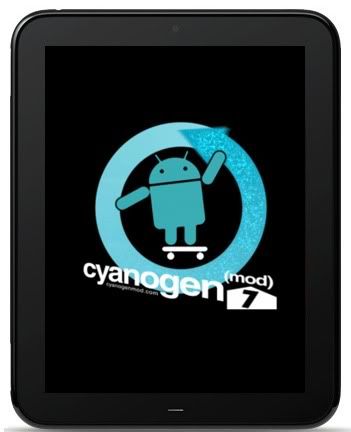
The CyanogenMod team has released a second alpha version of Android for the HP TouchPad tablet. Alpha 1 was released less than a week ago, and it was pretty functional — but included a number of bugs that could cause the tablet to crash, the WiFi to disconnect, or other problems.
Alpha 2 is still rough around the edges, but it includes a number of new features and improvements. Here are some of the highlights:
The battery drain issues have been partially fixed so the battery should last longer, especially when the TouchPad is idle.
The Android Market fix has been incorporate so that if you install the gApps package you should see most available apps in the Market.
WiFi should no longer disconnect when you resume from sleep.
The speaker should turn off when you plug in headphones.
The ACMEInstaller app should work better.
There’s now an ACME UnInstaller app if you want to completely remove Android and restore your original webOS media partition to its original size.
You can install CyanogenMod 7.1 Alpha 2 the same way as Alpha 1. Just grab the latest CyanogenMod build from the links in the RootzWiki forum and follow our step-by-step instructions.
The latest ACMEInstaller and Uninstaller are also available from the same RootzWiki thread.
HP may not be selling very many HP TouchPad tablets anymore, but there are somewhere around a million of the discontinued devices in the wild and it looks like HP’s webOS team hasn’t forgotten about us just yet. The company has just released a software update for the TouchPad which brings performance improvements and a few new features.
Among other things, webOS 3.0.4 finally includes a camera application. The HP TouchPad has a 1.3MP front-facing camera, but up until now you had to download a third party app if you wanted to use it to take pictures. Now there’s a built-in app for that. The app only shoots video or takes photos in portrait orientation.
According to webOS head Ari Jaaksi, other changes include improved messaging and the ability to connect over Bluetooth to non-HP phones. The HP App Catalog also now loads more quickly and also allows you to switch between categories and other views more quickly.
WebOS 3.0.4 also brings support for OGG Vorbis music files and the ability to create online and offline status messages in the Messaging app.
HP has also added support for accelerometer events to Adobe Flash Player and improved Skype video calling performance.
The HP TouchPad can automatically download the 53MB update over the air — or you can force the update by going to the Settings panel on your tablet, selecting System Updates and then tapping the download icon once the tablet finds the latest update. Warning: If you’ve installed Android on your HP TouchPad, the webOS 3.0.4 software update will overwrite the boot partition and remove Moboot. This means you won’t be able to boot Android unless you reinstall Moboot first. CyanogenMod 7.1 Android is still on your device, you just can’t access it without the Moboot software.
Fortunately it’s fairly easy to reload Moboot by following some of the instructions Android installation guide. Here’s the short version:
Connect your TouchPad to a PC and tap the icon to enter USB Drive mode.
Create a directory on the TouchPad called “cminstall” (without quotes).
Copy the moboot_0.3.3.zip file to the cminstall directory.
Exit USB drive mode.
Restart your TouchPad from the Device Info app in the Settings panel.
Hold the Volume Up button as your device reboots.
Once you see a big USB icon on the TouchPad, you’re ready for the next step.
Open a terminal and navigate to the folder on your computer where you’ve already installed Palm Novacom (and make sure the ACMEInstaller file is in the same directory).
Type the following (without quotes) and hit enter: “novacom boot mem:// < ACMEInstaller”
Once you’ve done that your device should reboot and you’ll see lines of code run across the screen. Once that’s finished, the Moboot menu should load, giving you the option of booting webOS or Android. via PreCentral
I made the leap and installed Cyanogenmod 7.1 on my HP Touchpad. It's so nice to have my Android apps back. The Android Market fix didn't work for me to install Facebook, Twitter, Google Maps and others from the Android Market.
My Thoughts
The apps don't seem quite as polished as WebOS apps. It looks like some of them just took the phone app and enlarged it, just not as optimized. It's still just worth having because you get so many more apps. Note that the apps below are what worked or didn't work on my Touchpad. This may differ from others.
Apps That Work For Me
Non Games
Evernote
Taptu
Pulse
Movies Pandora
Do It Tomorrow
Linked In
Google +
TweetCaster Dropbox Kindle
IMDB
Newegg
Google Voice
Zinio
Meebo
Mashable
Amazon App Store
Big Oven
YouVersion
Feedly
Solar Planets
Pageonce
Taptu
Pulse
Movies
Games Angry Birds Rio
Angry Birds Season Angry Birds
Air Attack HD Gun Bros
APKs I Installed
Fox News
Google Maps
Facebook
Twitter
Apps That Don't Work
Slacker
Springpad
Google Music
Apps Not Full Screen
Photobucket
Epicurious
Apps The Marketplace Won't Let Me Install
Zaarly
Apps I'm Looking Forward Too
Google Propeller (Flipboard alternative for Android)
The CyanogenMod team has released the first public build of Google Android for the HP TouchPad tablet. Right now the software is still in the alpha phase, which means that not everything works as it should. There are still bugs with the accelerometer, Bluetooth, camera, and other functions, for instance. But for the most part, the operating system is now up and running on HP’s discontinued tablet and anyone can install it.
While the HP TouchPad originally shipped with webOS 3.0 software, the tablet’s hardware is similar to many Android tablets. Since the future of webOS is uncertain — and right now there are hundreds of thousands of apps available for Android and less than 10,000 apps for webOS, many of the people who picked up cheap HP Touchpads when HP discontinued the tablet in a $99 fire-sale have been looking forward to installing Android.
The steps below will help you to do just that. This will create a dual-boot setup, allowing you to switch between Android and webOS. Again, this is alpha software, and things can go wrong. You’ll also lose music or other media stored in webOS when you follow these steps.
The current version of CyanogenMod for the TouchPad is based on Android 2.3.7. Once Google released the source code for Ice Cream Sandwich, developers will start working to port it to the TouchPad, but that work could take several months to complete.
1. Download and install the Palm Novacom software for your computer. You can find grab the latest software for Windows, Mac, or Linux from the HP website.
2. The next step is to download three files from the RootzWiki forum and one more file from the Moboot project.
If you want to install the Google Android Market and Google apps such as Gmail and YouTube (which you probably do), you’ll also want the gApps installer for CyanogenMod. You can download it from goo-inside.me or from the CyanogenMod wiki.
All told, you’re downloading 5 files:
ACMEInstaller.zip
update-cm-7.1.0-tenderloin-a1-fullofbugs.zip
update-cwm_tenderloin-1012.zip
moboot_0.3.3.zip
The latest gApps package for CyanogenMod
3. Unzip the ACMInstaller file to the same directory where Palm Novacom is installed. On my computer that directory is C:\Program Files\Palm, Inc.
4. Connect your HP TouchPad to your computer with a USB cable.
5. On the TouchPad you should see a USB notification. Tap the symbol to mount your tablet as a USB mass storage device on your computer.
6. Open a file browser on your computer and create a new folder on your HP TouchPad called “cminstall”
7. Copy the update-cm-7.1.0-tenderloin-a1-fullofbugs.zip, update-cwm_tenderloin-1012.zip, and moboot_0.3.3.zip files into that directory. If you’re also installing gApps, drag tat file to the cminstall folder as well.
Do not unzip these files first.
8. Now it’s time to reset your HP TouchPad. To do that follow these steps:
Tap the home button and then hit the arrow key to bring up a list of applications.
Navigate to Settings.
Choose Device Info.
Select the red Reset Options button at the bottom.
Tap the Restart option on the following screen.
If you want to install the Google Apps including the Android Market and Gmail apps, scroll down to the bottom of this article for details on how to add those features.
9. As soon as the screen goes dark, start holding the Volume Up button — don’t let go until you see a big USB symbol on your display.
10. Your computer might take a moment to recognize the TouchPad.
11. Once it’s recognized, open a terminal and navigate to the Palm Novacom directory. On a Windows computer you can do this by following these steps:
Click on the Start Menu.
Type “cmd” (without quotes) into the search box.
A terminal window should open up — but you’re in the wrong directory.
Type “cd c:\” and press enter to get to your root directory.
To navigate to the correct directory, type “dir” and press enter to see a list of directories.
On my computer, I next typed “cd Program Files” and hit enter, then “cd Palm, Inc” and hit enter again.
12. Enter the following command (without quotes) and hit return: “novacom boot mem:// < ACMEInstaller”.
That’s pretty much it. For the next few minutes you should see text flying across your screen. When it’s done, the HP TouchPad will boot Google Android.
In order to get back to webOS:
Press and hold the power button.
Choose the reboot option.
Then select “reboot to webOS” from the next menu.
Note that you’ll only be able to reboot to webOS if you’ve installed the “moboot” file as described above.
This method installs the open source CyanogenMod 7.1 version of Android on the tablet. It’s based on Google Android 2.3.7 software.
If you didn’t install the Android Market and other Google apps, it’s not too late to do it at this point. Just follow these steps:
Copy it to the same “cminstall” directory on your TouchPad where you placed the CyanogenMod installers.
Run the ACMEInstaller program again from your computer — or you can try adding gApps during your initial installation.
If you’re familiar with using ClockworkMod Recovery, you can also place any update files in the root of your device’s storage and reboot into recovery from Android and use ClockworkMod to apply updates.
Note that the first time you boot after installing gApps you may want to hit the “cancel” button instead of signing in with your Google account right away. That way you have time to connect to a WiFi network before the Android Market tries to load the list of available Google applications.
App support
Even if you do install the Android Market, you may find that some of your favorite apps aren’t listed. I couldn’t find the Facebook, Twitter, Google Maps, or Dolphin HD web browser apps when I searched the Market for them on the TouchPad.
This is likely because the Android Market doesn’t think they’ll be able to run properly on the TouchPad’s hardware. They will.
You just need to install them manually. If you have a rooted Android phone or another device you can use an app such as Titanium Backup or ROM Toolbox to create backup copies of any apps installed on your device. You can then email them to yourself or copy them to your tablet using another method.
I was able to successfully install all four apps listed above. They don’t all look great on the TouchPad’s 9.7 inch, 1024 x 768 pixel display, but they do run.
Update: There’s an update that fixes the problem with the Android Market that had prevented certain apps from being listed. There are two ways to install it.
Method 1: Using Android and ClockworkMod Recovery:
Connect your tablet to your computer and mount it as a mass storage device.
Create a folder called “cminstall” on your device.
Copy the update file to that folder.
Reboot your device into recovery mode by restarting the tablet and holding the Volume Up button until a big USB icon appears on the screen.
Follow steps 11 and 12 in the tutorial above to open a terminal, navigate to the Palm Novacom/ACMEInstaller directory, and enter market “novacom boot mem:// < ACMEInstaller” to start the install process.
Once you’ve done that, you should be able to find Google Maps, the Dolphin HD or Opera web browsers, or other apps in the Android Market.
If you’re wondering exactly how the ACMEInstaller works, you can read more about it at the CyanogenMod blog. Basically, the app resizes the webOS media volume to create space for Android system, cache, and data volumes. It then installs CyanogenMod, the Moboot bootloader, and anyother files such as the Google Apps.
This is why using the installer tool will erase any songs, photos, or other media stored in your HP TouchPad webOS media directory.
The good news is that CyanogenMod 7.1 for the TouchPad will then treat the webOS media area as if it were an SD card — so you can access webOS media from Android, or access your Android files from webOS.
You can find out more about how the first alpha release of CyanogenMod for the HP TouchPad works in my hands-on post, or check out this video:
What to do if you can’t reboot to webOS
If you followed the instructions and put Moboot and ClockworkMod Recovery in the cminstall folder when you first flashed Android you should be able to use the “reboot to webOS” option to restart your tablet in webOS. If not, you can only reboot to Android — but don’t worry. There’sa way to fix this.
While in Android, connect your tablet to a computer via a USB cable.
A “USB connected” option will show up in your notification bar. Tap the option that says “Turn on USB storage.”
Your tablet should show up on your computer as a USB disk drive.
Create a folder called “cminstall.”
Place Moboot, Google Apps, or any other file you need to flash into that folder.
Reboot your tablet while holding the Volume Up button to enter recovery mode.
From your computer, follow steps 11 and 12 from the installation tutorial again to open a terminal, navigate to the novacom folder and use the “novacom boot mem:// < ACMEInstaller” command.
That should send the new components over to your TouchPad and the next time you boot you should have the missing features such as the ability to enter ClockworkMod Recovery to select your boot options.
What do to is ClockworkMod Recovery fails to install
It’s possible that Android may install properly, while the ClockworkMod Recovery installation fails. One theory is that this happens sometimes if you have a custom webOS kernel in the /boot partition. Here’s what you can do manually install the Recovery:
Unzip the update-cwm_ternerloin-1012.zip file to the same director where Novacom and your ACMEInstaller files are located.
Connect your TouchPad to your computer and reboot into Recovery by holding the Up Volume button while you reboot.
Open a terminal and navigate to the Novacom directory.
Type the following (without the quotes): “novacom boot mem:// < uImage.ClockworkMod”
What to do if you’re pretty sure your tablet is frozen
First, make sure your device is really frozen. The install process can take a while, so it might look like nothing is happening even when there’s activity. But if five or six minutes pass and you find yourself looking at blank screen, try pressing and holding the power button and home button at the same time for about 30 seconds. This should cause your tablet to reboot.
Restoring webOS with the webOS Doctor
If you royally mess things up you can also try to restore your system to factory default condition using the webOS doctor. The folks at webOS Internals have put together a nice set of instructions for doing that.
Bonus round: If Android isn’t your thing, you can also install Ubuntu Linux on the TouchPad.
Note that while it’s pretty hard to completely “brick” the tablet and leave it entirely unusable, it is possible to do so. Installing Android may void your warranty — especially if you’re unable to restore the tablet to its factory default settings. So please proceed at your own risk, and understand that neither Liliputing nor the developers at CyanogenMod can be held responsible if something you do to your tablet causes it to stop working properly.
The CyanogenMod
team has posted a new video showing the progress developers have been
making in porting Google Android to run on the 9.7 inch tablet. We’ve
already seen the benchmarks
to show that Android performance is pretty good on the tablet, but now
we can also see that CyanogenMod has come a long way since the team’s last video — when Android already looked pretty good on the TouchPad.
Major updates include support for WiFi, basic audio support, and
limited support for the Google Android Market (although it looks a
little funky on a 1024 x 768 pixel display).
The accelerometer is also now working, which means you can
automatically rotate the screen simply by changing the position of the
tablet from portrait to landscape or vice versa. You can also play video
games that use the tablet’s motion-sensing hardware.
Not everything is working perfectly just yet though.
While the HP TouchPad has a 1.2 GHz Qualcomm Snapdragon dual core
processor, it’s only using one of those cores in this latest demo — and
there’s a mediaserver app which is using most of the CPU cycles. The
CyanogenMod team is working on those problems.
There are also still some applications that don’t work. For instance,
the official YouTube app doesn’t work, but you can use a web browser to
watch videos from the online video site — but playback is still a
little choppy.
CyanogenMod 7 is a custom Android distribution based on Google’s
source code for Android 2.3 Gingerbread. It includes some tweaks for
tablets, but the team won’t be upgrading to Android 3.2 Honeycomb
anytime soon, since the source code isn’t available. Instead they’re
waiting for Google to release the code for Ice Cream Sandwich, the first
version of Android designed to run on both phones and tablets.
In the meantime, Gingerbread has a few key advantages over the webOS
3.0 software that originally shipped on HP’s tablet. First, there are
hundreds of thousands of third party apps that can run on Gingerbread,
compared with about 6,000 apps for webOS — and that includes high
quality eBook readers and other apps that are sorely missing for webOS.
When running webOS, the TouchPad can also feel a little sluggish at
times. When surfing the web, the tablet seems to fly. But I’ve spent a
fair amount of time waiting while launching applications or flipping
between apps that are already open.
HP has also discontinued production of webOS hardware, and while the
company has promised to keep the operating system alive by looking for
partners to license webOS for their phones, tablets, or other devices,
it’s not really clear at this point how frequently we’ll see new
software updates or third party apps for the platform. So installing
Android (even an unofficial version without support form HP) could help
make the tablet more useful and provide some hope of future (and equally
unofficial) software updates and improvements.
The CyanogenMod 7 team won’t be releasing their Android port for the
HP TouchPad to the public until some more of the kinks are worked out.
But progress the team is making is pretty remarkable.
It is estimated nearly a million TouchPads have been sold by HP, making it one of the top-selling tablets behind the iPad. True they were sold at ridiculously low prices, but there are a lot of buyers happily using a darn good tablet as a result.
One of the strengths of the webOS platform is the homebrew development community building patches to the system to improve operation. Many of these are designed to give better performance by altering things behind the scenes, while others improve core apps to make them better serve the user’s needs. The letter patches (available through the PreWare system) add features that become part of the core app once applied. Here are some good patches that make the apps work better.
UberCalendar HD. The Calendar app on the TouchPad is a decent application, but missing some functionality that this patch adds. UberCalendar adds a wonderful agenda view in the left pane of the display that displays all events collected from the view on the right-hand pane. The patch also adds a host of settings that can be enabled through the Calendar app preferences. While the standard Calendar app defaults to Day view only, this patch lets you choose the one you prefer (day, week, month). It is a primary example of one of the major advantages to webOS over other platforms: the ability to patch core apps instead of writing whole new apps to replace them.
ThumbNav Browser Controls. The TouchPad browser is very good, but the simple menu this patch adds makes it even better. With a simple swipe in from either the left or right edge of the display, a little menu pops up on the side of the screen presenting common tasks such as Next, Previous, and Add Bookmark. You can also fire off another instance of the browser to do other things. The ability to do these common tasks without moving you hand to the top of the screen is far more useful than you might think.
Browser Power Swipe. For those wanting an easy method for moving back and forward in the browser, this patch adds simple gestures to perform that function. Just swipe back to return to the previous web page or forward to go to the next page in the sequence.
Launch with Folder View Minimized. The email app in webOS is very good, but this little patch suits my preferences better. The Folder View normally displays on the left, showing email folders (Inbox, Starred, etc.). Since I almost always work in the Inbox folder, I was always collapsing this Folder View pane to devote more screen to the actual email. This patch does that by default.
Always Show Previous and Next Buttons. This patch adds buttons facilitating moving back and forth between individual email messages in the email app. They appear at the bottom of each email to make it a simple tap to move up or down in the messages list.
There are other patches available in the PreWare homebrew system and it is worth scanning through them to see if there are others you might find useful. The patches I have listed here are easy to use yet add a lot of functionality to my daily TouchPad usage.
Many customers have complained that their HP TouchPad tablet will not charge and get a message stating the connected charger isn’t supplying enough power to charge the device.
The TouchPad charger is two pieces which twist apart. If they are not fastened correctly and tight, the tablet will not charge and/or you may get the error message.
Simply unscrew the top off, and then screw it back on snug making sure writing on the side of the connector are aligned correctly.
Most of the time this is a simple fix and you’ll have your TouchPad back up and playing. If not, you may need to contact HP.
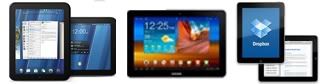
HP’s TouchPad—and the $99 fire sale that came with its death—will slow the market share gains for Android tablets, according to IDC.
IDC said global media tablet shipments surged 303.8 percent in the second quarter compared to a year ago — to 13.6 million units. IDC is forecasting 62.5 million units for 2011, up from its previous outlook for 53.5 million units.
That overview, however, is a footnote to the market share battle in tablets. As everyone knows, Apple’s iPad is top dog with 68.3 percent market share. RIM grabbed 4.9 percent of the market with its PlayBook and Android tablet share fell to 26.8 percent in the second quarter, down from 34 percent in the first quarter.
The upshot is that Apple and RIM thwarted Android’s tablet advance. RIM’s showing was solid overall, but the real hit to Android market share will come from HP’s TouchPad.
HP killed the TouchPad, but its liquidation sale was a hit. IDC said:
IDC expects many consumers who were on the fence about buying a media tablet to scoop up $99 TouchPads as a result of HP’s decision to end production of its tablet product. IDC expects close to a million TouchPads to ship into the channel before the end of the year. As a result, WebOS’s worldwide market share is forecast to reach 4.7% in 3Q11. However, with no clear plan to license or sell the OS to other vendors, IDC expects WebOS market share to shrink back to zero by 1Q12.
The bottom line is Android’s tablet share will fall to 23 percent in the third quarter before rebounding in the fourth quarter. It’s clear that price matters and Android tablets need to become less expensive in a hurry to gain market share.
In fact, Android’s tablet march looks downright shaky for the likes of Motorola, HTC, Samsung and others. Consider:
A soon-to-be-defunct tablet derailed Android market share.
An Amazon tablet will give consumers more choice with a quasi-Android device.
A year from now there will be Windows 8 tablets available.
None of those items are good for massive Android market share gains.
It has been more than a year in the making, and incredible! is finally ready to hit the catalog. Geoff Gauchet (the developer also known as "Zhephree") has sent us the final version of his social streaming application for the TouchPad to show you what all of the hype is about. He also wanted us to let you know that incredible! is on its way to the webOS App Catalog right now, and should be available within the next few days. This is the very same app that we raised over $1500 earlier this year for, and now we finally get to answer that question, "Was all of the hype worth it?"
If Glimpse by Inglorious Apps is an extension of webOS multitasking in the form of an app, incredible! is an extension of webOS Synergy. It was made to bring all of your social streams into one place so that you don't have to access multiple apps to keep up with your entire network, and to give you complete access to manage what content is most prominent in your stream at any time. The app itself wasn't designed to allow you to manage the settings of those accounts or check your private messages; instead think of this as a way to more productively watch your Facebook, Twitter, Flickr and Foursquare streams throughout the day (similar to Google Reader for social networks), and you'll start to understand why this app is still very useful.
You also aren't going to have access to a search function right away, either, which can be a bit of a bummer to those of us who like to keep up with the latest Twitter trends or look at all of the latest updates from someone on Flickr. At first this was a pretty major problem for me, cause I'm always doing searches to find what people are saying on various topics. But as I continued to use the app and get to see how it all works, I realized that you aren't supposed to use this app like a typical Twitter client. incredible! is a very different beast, indeed!
So how do you use it? Geoff has designed the app to put a lot of focus on the stream of content that is going through right now, rather than on what might have happened in the past. The main view is setup into three typical webOS 3.0 panes which, from left to right, show your action bar, the stream of content, and the details pane for individual items. After you've gone through the steps on first launch with setting up all of your accounts, these three panes will be lit up with activity that's going on right now, and if you set everything up wisely, you'll never skip a beat.
Before I explain how filters work, it's important to understand how to post updates or reply to messages. In the top left corner you'll find your "Send" button, which will give you access to updating specific accounts individually or all of them at once. I was a bit confused at first on how to change which account I was updating, but you'll notice in the dialog box that appears after tapping "Send", that there is a drop-down button in the bottom left corner (it will show your default account until tapped). Select that and you'll see a list of all of your groups and accounts that are available for that update or reply (obvious limitation here: you can't reply using Twitter if the item was posted on Flickr). Once you've selected the accounts that you want to post to, the other buttons should look familiar: adding a link, photo, location or smiley emoticon is as simple as tapping the buttons that are below the text field.
If you want to post to multiple accounts at once, you'll need to create a new "Group" using the menu option in the top left corner. Each group that you create will consist of multiple accounts from Facebook, Twitter, Flickr or Foursquare; and can have any combination and number of accounts included at once. Once you add the appropriate accounts and name your group (I have one called "Personal" and another called "Work") you'll have a new option available when posting a new item that will allow you to select that group for updating. Just as when you would select either your Facebook or Twitter account from the dialog box, now you can select your recently created groups to update or send pictures to all of those associated accounts at once.
With your accounts and groups now setup, you can start getting to the real meat of incredible!. You don't just have to view the same stream all day as life flies by; incredible! has a built-in filter system that makes these updates dynamic and intuitive. The easiest way to see this is by tapping the "Photos" icon in the left sidebar, which will then display all posts from your accounts that have photos included. Or you can tap on the "Filters" icon (which is just above Photos) to break down your stream by account or type. Where things get really cool, though, is with a feature that Geoff calls "Rules".
In the same way that Gmail allows you to create filters in your email based on the content, subject line or author; incredible! allows you to create rules that perform specific actions based on the author, content, account or service that the item is from. First tap and hold on an item that you want to create a rule for and then follow the instructions to set that rule. With this feature I am able to hide certain spammy people from my stream and highlight others so that they stick out more amongst all of the noise. You can even create custom rules with code that Geoff provides on his website, making the possibilities of what to do with these rules completely limitless. I've created a rule that searches for mentions of PreCentral and highlights them in my stream as Blue, but you might create one that keeps your best friend right in the foreground of your social life.
There are some other really nice touches that Geoff has included in the app. Images appear within the stream itself as thumbnails and websites show up in the details pane so that you can see them all at a glance before deciding to get a closer look. You can change the background image of the app to be one of the three pre-defined ones in the preferences, or to even pull in the background that you use on your Twitter account. You can also choose to use someone's real name rather than twitter handle while looking at their other accounts and updates, which makes being on a social network a little more... well.. social.
The app isn't without its downsides, though. Where other apps have spoiled us with pull-to-refresh, incredible! is stuck with a refresh button that activates each time you tap it. You also can't save images to your device or copy the URL to whatever item you're looking at to share it (though you can favorite it). Tapping on hashtags and other links open up the default web browser, which is certainly fine, but I'd have preferred to see it all within the app itself. There is also very sadly no JustType support, which means I'll have to open the app directly before updating any statuses.
The app itself looks fantastic and feels really good. It does lack a few features, but I think I'll find myself using it as my daily driver for keeping up with my networks. For managing my accounts or checking private messages and such, I have other apps like Facebook or Spaz HD that I can use if needed (and I will be needing them). As Geoff has said in his latest blog update, though, he still isn't quite finished with it and updates might still be incoming if enough people demand something specifically, but he's going to take a break for a little while to let it all soak in before jumping back on the development wagon.
incredible! is coming and we're excited to see it arrive. It fills a much needed hole in the webOS app catalog as a beautiful and fast social network application that syncs with four major networks that are out there. We won't say it's perfect (what app is?), but we will say that it'll be worth the money once it hits the app catalog.
For smartphone owners, there is still hope to be held. Geoff has mentioned in his blog that he will continue work on it in due time, and will hopefully have a release sometime in the future.
If your looking for ringtones and wallpapers for you HTC Eris, Zedge is the app to have. You can search thousands of ringtones and wallpape...
Welcome to my blog.
This is a place to display all of my hobbies and interest that I think would also interest other people like me. Feel free to leave comments and enjoy some music while your here. Be sure to rate the post.
About Me
-Live in North Carolina -Served 4 years in the Air Force
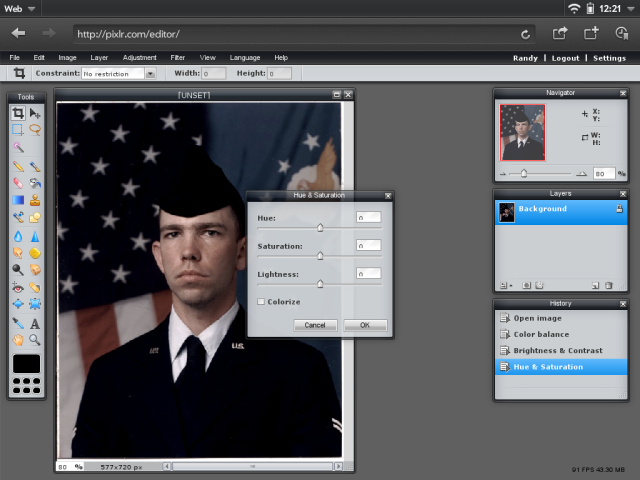
Hobbies -Computers -HTPC Computers -Photo editing -Playing guitar -Family Tree Research






 IDC said global media tablet shipments surged 303.8 percent in the second quarter compared to a year ago — to 13.6 million units. IDC is forecasting 62.5 million units for 2011, up from its previous outlook for 53.5 million units.